Assigning numeric values with units
Numeric values with units can be assigned by one of the following methods in the context of a form:
The target field is defined as a Calculation field and the calculation returns a numeric value with a unit as a result.
A Set value action transfers the value of one numeric attribute to another and both feature elements for units.
Both methods work with the form elements containing the value, while the associated units are involved without being addressed explicitly.
The effects of assigning a combination of value and unit to a target element are determined by the following principles:
If the target element does not feature a unit so far, value and unit are both assigned to the target.
If the target element features a unit already, this choice for unit is maintained.
If the Unit conversion is applicable from the unit of the assigned value to the target unit, the converted value is assigned for the target.
If the Unit conversion is not applicable from the unit of the assigned value to the target unit, the target assumes the assigned value directly.
 IMPORTANT
Unit are only considered within an input form, if they are represented by elements in the design of the form. These elements are not required to be visible but must be included, otherwise the units are completely ignored by the assignment and conversion mechanisms described here.
IMPORTANT
Unit are only considered within an input form, if they are represented by elements in the design of the form. These elements are not required to be visible but must be included, otherwise the units are completely ignored by the assignment and conversion mechanisms described here.
The following examples illustrate the dependencies:
|
Input for assignment |
|
Target (original values) |
|
Target (after assignment) |
Remarks |
||
|
Value |
Unit |
► |
Unit |
= |
Value |
Unit |
|
|
1.25 |
m |
► |
(empty) |
= |
1.25 |
m |
Assignment of value and unit |
|
1.25 |
m |
► |
cm |
= |
125 |
cm |
Assignment of value converted to target unit |
|
1.25 |
m |
► |
m³ |
= |
1.25 |
m³ |
Assignment of value without conversion |
►NOTE◄ Unit conversion in the second example is applied regardless of the setting for the Convert value option for the Combobox representing the target unit, but only if this element is part of the form design (see the 'Important' notice above).
Configuration example for 'Set value' action:
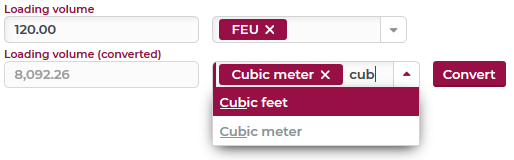
As an example, a value entered for Loading volume with a unit of choice should be converted to another selectable unit by the click of a button.
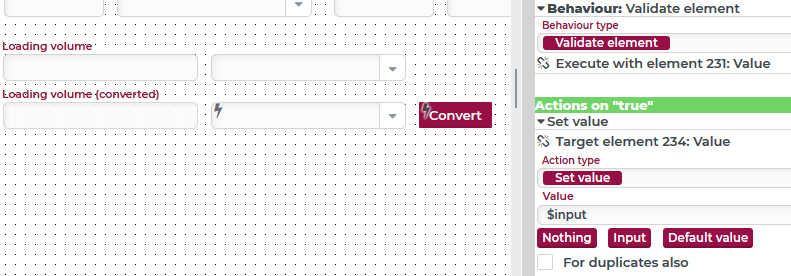
When the Convert button is clicked, an Validate element behaviour validates the value element (#231) for the Loading volume and returns the Value (via '$input') to a Set value action targeting the value element (#234) for Loading volume (converted). As long as 'convertible' combinations of units are selected, clicking the button assigns the correct value in the target unit. Instead of the button, changing the target unit could also trigger the calculation.
Configuration example for assigning a value by calculation:
For the same task as above, Loading volume (converted) could be defined as a Calculation field.
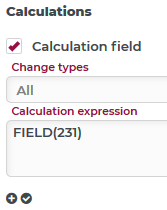
The calculation to define is merely a direct reference to the value of field #231 ('Loading volume'). With Change types set to 'All', the calculation is updated whenever the value or unit of the referenced field changes.
Configuration example with calculation and conversion:
For a shipment, the values entered for Length and Width (including the choice of unit) serve as input for a calculation of the Loading meter (typically defined by 1 ldm =Length [in m] x Width [in m] / 2.4):

The ldm unit was introduced as a custom Length unit for this purpose, with a conversion factor of 2.4 to the base unit m (see Unit conversion). This enables the following configuration in a form:

The values for the length and width are addressed by the element ids (187, 190) enclosed in wavy brackets.
The function Convert (see Calculate value) is used to convert both inputs values to meters (m).
Once more, Convert is used to convert the product of both factors to loading meters (ldm). This conversion applies the conversion factor as specified in the custom entry for Length unit.
►NOTE◄ As shown in the screenshots, the form features an element indicating the 'unit' for the 'value' of the Loading meter. The calculation returns a value with the applicable unit ldm, which is also visible in the upper screenshot. A crucial point to consider in form design is, that the ldm unit from the calculation result will only be assigned for the target, if the target does not specify any unit before. If a shipment already contains a unit for the loading meter attribute, for example, because loading meters were populated using unit m (meters) earlier, the calculated ldm value will be converted to m when assigned, which will neutralize the effect of the conversion factor 2.4. Consequently, the form will indicate 3,6 m instead of 1,50 ldm. Combined with a label text of the Loading meter, this could be easily misread, although the indication could be switched from m to ldm to clearly indicate 1,50 ldm, provided the option Convert values is checked for the Combobox.
If the case of a data object carrying another unit than ldm for loading meters can be excluded, the following configuration might be used as well:

This changed Calculation expression will return a value with unit m, although this is technically incorrect for a product of m x m.
When this result is assigned to the Loading meter element using a unit of ldm (initialized by default, if empty) meters are converted to ldm automatically.